Last Updated on May 18, 2026
AI avatars are changing the way we create videos, making storytelling faster and easier than ever. With realistic expressions and gestures, they make your videos even more immersive. But is there an easy way to add gestures to your AI avatars? There is.
With video generator tools like HeyGen, adding lifelike gestures to AI avatars is accessible, intuitive and surprisingly fun. Its Gesture Control feature allows for hyper-realistic avatars that hold your audience’s attention way better than old-school AI videos.
In this article, we’ll walk you through practical steps to add expressive gestures to AI avatars. From product explainers to marketing campaigns, your new avatars will pack more impact in the videos.
Let’s dive in.
Table of Contents
5 Steps to Add Gestures to AI Avatars with HeyGen
Follow these five simple steps to create expressive, natural-looking AI avatars:
 1. Record gesture-ready footage
HeyGen’s Gesture Control is available with its Hyper Realistic Avatars – personalised avatars created using your own video footage. These avatars look just like you, as if digital twins.
Now, to add gestures to your AI avatars, start with a clean, structured video. HeyGen works best with a footage that begins with 30 seconds of neutral, no-gesture speaking. Then, you can add one gesture every 2 seconds – a smile, a thumbs-up, a point – always returning to neutral in between.
HeyGen learns from this structure, capturing your movement with accuracy and nuance. You can include facial expressions, body language, or even something like a pet walking behind you.
Also read: How to Use Google Veo 3 from India
2. Upload video to HeyGen
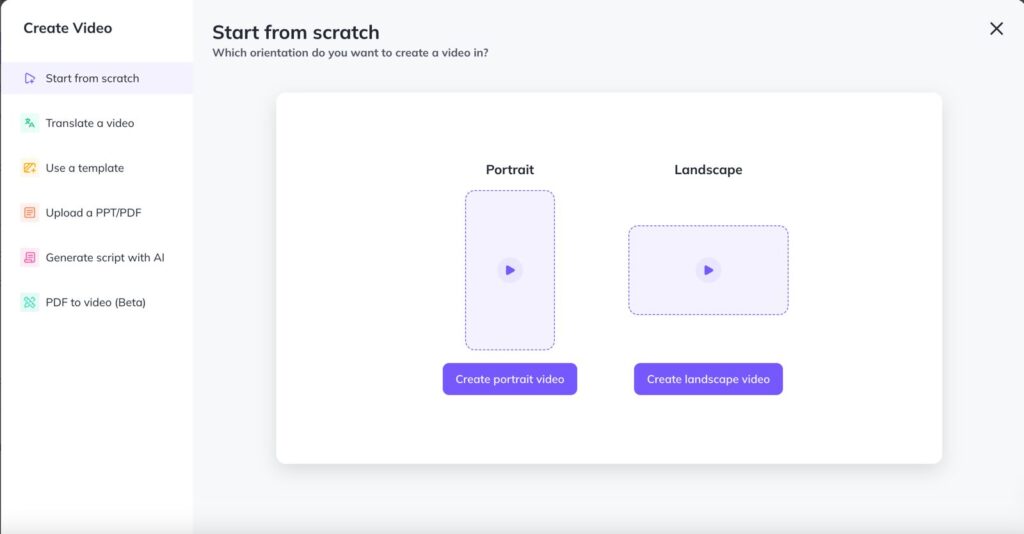
Once your video footage is recorded, head to HeyGen and upload it to create your Hyper Realistic Avatar. The platform then processes your video and builds your avatar. In a few minutes, you get an avatar that mirrors your appearance, and now, your expressions and gestures as well. You don’t need any other special equipment or software.
3. Annotate gestures in Studio with HeyGen’s Gesture Control
Gesture Control will automatically detect gestures and suggest placements after the video footage is uploaded. You can review, add, and fine-tune each gesture in HeyGen’s Studio. It enables you to adjust timings and manually add and remove gestures in the footage.
When you add or update a gesture, allow 3-5 minutes for HeyGen to process the changes. This ensures everything syncs smoothly and looks just right in your videos.
4. Sync gestures with your script
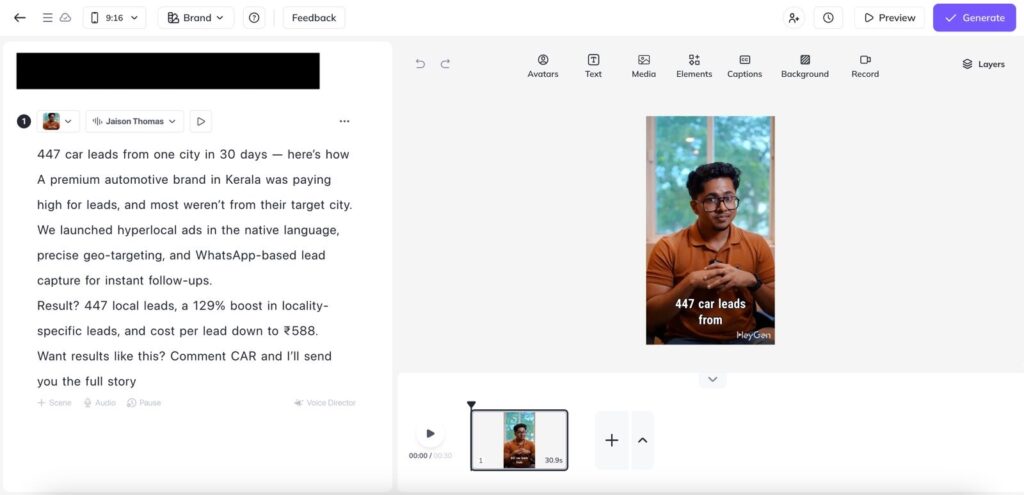 With your AI avatar and gestures ready, you can now generate new videos with genuine gestures. Just add a new script and assign gestures to specific moments as your avatar speaks. All you need to do is click on a word and choose the gesture you want to appear there. Whether it’s a smile on a greeting or a nod on a key point, syncing gestures to your script makes your video feel more real.
Also read: 9 Best AI Agents for Business Automation and Efficiency
5. Fine-tune with smart scene cuts
To make gestures appear naturally, HeyGen requires you to insert a scene cut a few seconds before each gesture. This helps your avatar transition smoothly into the movement. Just try not to overdo it.
But frequent cuts (every 5-10 seconds) can feel jarring. For the best viewing experience, aim for a clean, natural cut every 20 to 30 seconds.
Tips for Creating Natural and Impactful Gestures for Your AI Avatars
Follow these tips for natural AI avatar gestures:
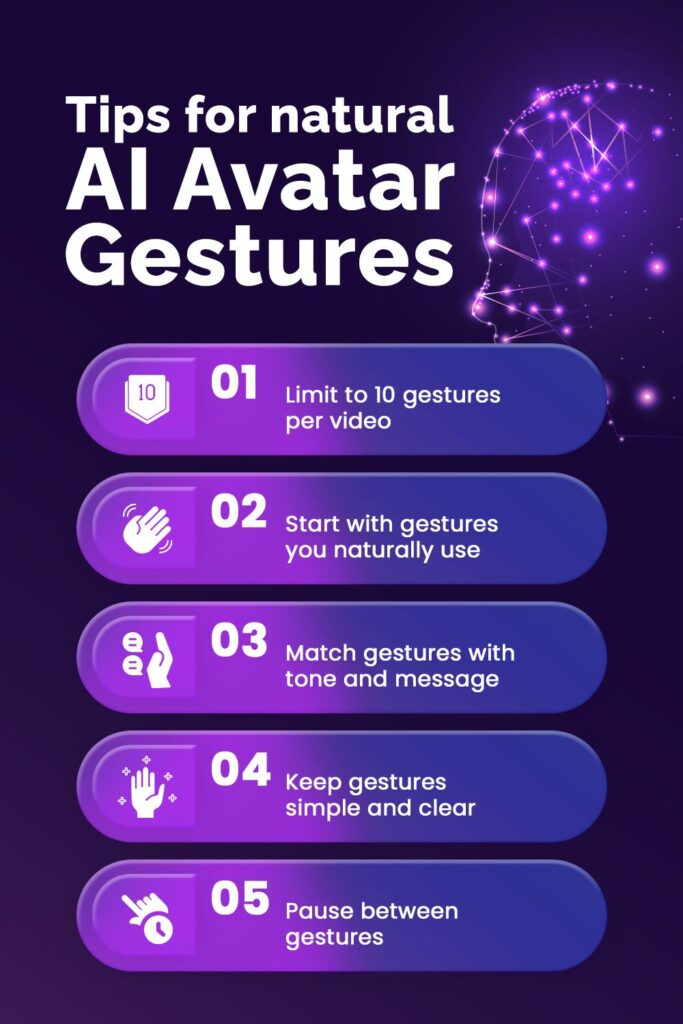
- Limit to 10 gestures per video
- HeyGen currently supports only up to 10 gestures per uploaded video. Focus on the most meaningful expressions instead of packing in too many.
- Start with gestures you naturally use
- Choose gestures you’d use in real conversations. Natural expressions keep your avatar authentic and more relatable to your audience.
- Match gestures with tone and message
- Align each gesture with the purpose of what’s being said. For example, a smile works well for a welcome message, while a head tilt may be more suitable for a question.
- Keep gestures simple and clear
- Avoid overly complex or exaggerated movements. A subtle nod or a gentle hand wave is often more effective than dramatic gestures, especially in professional or informative videos.
- Pause between gestures
- Always return to a neutral pose between each gesture. It gives each movement space to land and ensures HeyGen can process them cleanly, instead of blending one into the next.
While HeyGen offers powerful tools for adding realistic expressions and gestures to your AI avatars, you might also explore Synthesia for creating lifelike talking head videos. In our guide, An Easy Way to Create Realistic AI Avatar for Talking Head Videos with Synthesia, we walk you through how this platform can help you produce professional-quality avatars effortlessly.
Transform Your Video Strategy with Blusteak
Adding gestures to your AI avatar makes your videos more human and engaging. But it’s just the start. To truly stand out, you can add realistic expressions and gestures to your AI avatars with HeyGen and combine them with a solid video marketing approach. That way, you can turn engaging content into tangible business impact.
At Blusteak, we help brands plan, produce, and scale video content that grabs attention and drives action. From social media videos to sales-focused ads, we create videos that speak, sell, and stick.
Ready to level up your video marketing? Get in touch with Blusteak